How to Set Different Hours for Different Services in Your Booking System
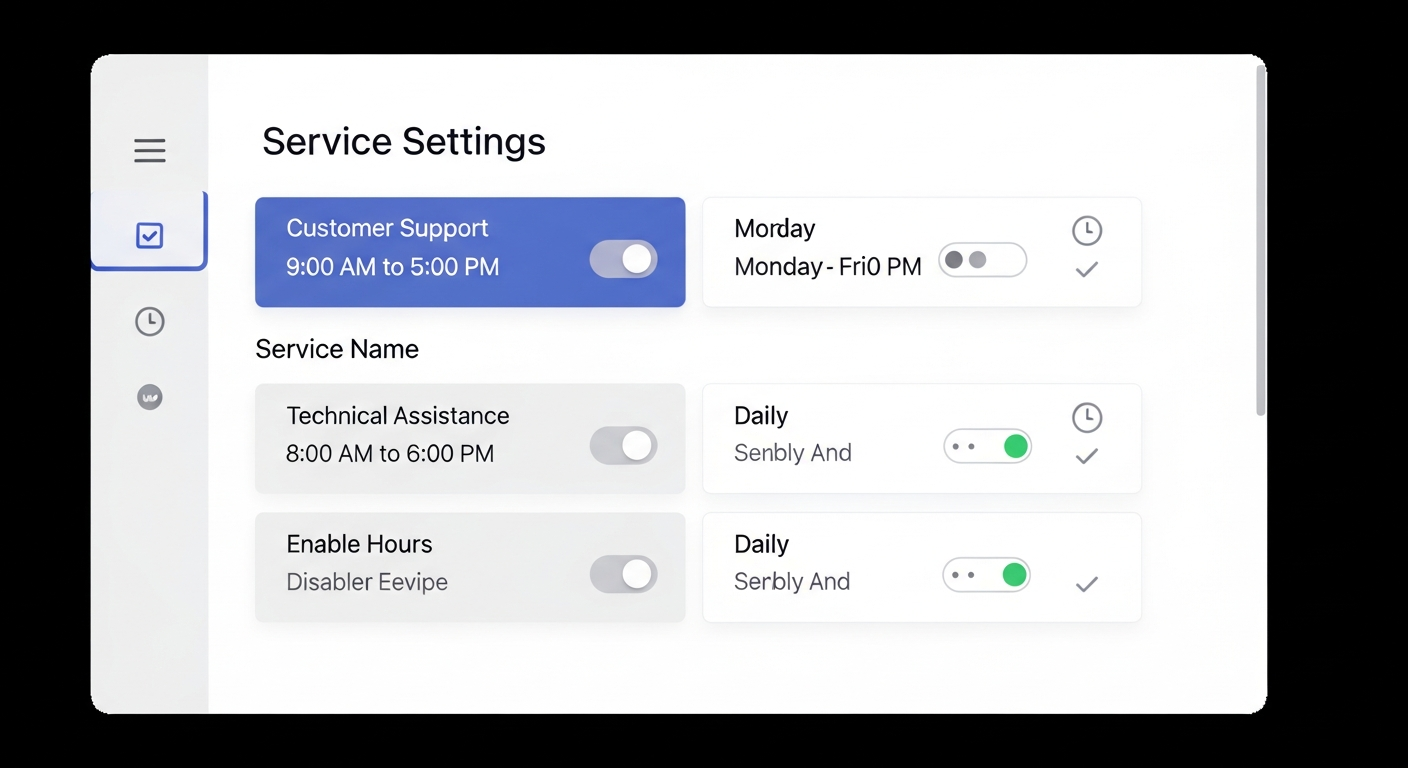
Most booking systems let you set business hours. The best ones let you set different hours for different services — and the difference is significant.
If you offer both a quick 30-minute consultation and a 3-hour intensive treatment, you probably don't want the intensive treatment bookable at 3pm when there's not enough time in your day to complete it properly. You might want consultations available in the evenings but intensive work limited to morning hours when your energy is highest.
Service-level availability makes your schedule work the way you actually want to work.
Real-World Examples of Service-Specific Hours
Personal Trainer: — "New Client Consultation" available Monday/Wednesday 6–8am (when you have energy for sales conversations) — "1-on-1 Training" available 6am–12pm all weekdays (peak performance hours) — "Online Programming Review" available evenings via video
Massage Therapist: — "60-Minute Deep Tissue" available Mon–Fri 9am–3pm (can't start after 3pm to finish by 5) — "30-Minute Chair Massage" available 9am–5pm (shorter, can fit later in day) — "90-Minute Prenatal Massage" limited to mornings only
Hair Salon: — "Color + Highlights" (4+ hours) not bookable after 1pm — "Haircut" available anytime during open hours — "Blowout" available 9am–5pm only
How to Configure This in MyBokr
MyBokr (mybokr.com) lets you set specific available hours for each service independently of your general business hours. When you configure "Color + Highlights" with a 1pm cutoff, that service simply won't appear as bookable after 1pm — regardless of whether you're technically open until 7pm.
This prevents the double-headache of a client booking a 4-hour service at 4pm and you having to call them to reschedule.
Pro Tip: Use service-specific availability to protect your most demanding work. High-complexity, high-energy services should be bookable only during your peak-performance hours. Simpler services can fill the remaining slots. This approach improves both your work quality and your work satisfaction.
Work on Your Terms
Configure service-specific availability in your MyBokr account at mybokr.com. Make your calendar work for you, not just for whoever happens to click first.